
Invoices
Invoices are a core part of DSPCRM. You can create invoices manually, or use our self-service order forms. Regardless of how the payment is made, there will be a corresponding invoice for it in DSPCRM . Most of the reporting features in DSPCRM are based on data from invoices.
Invoice details
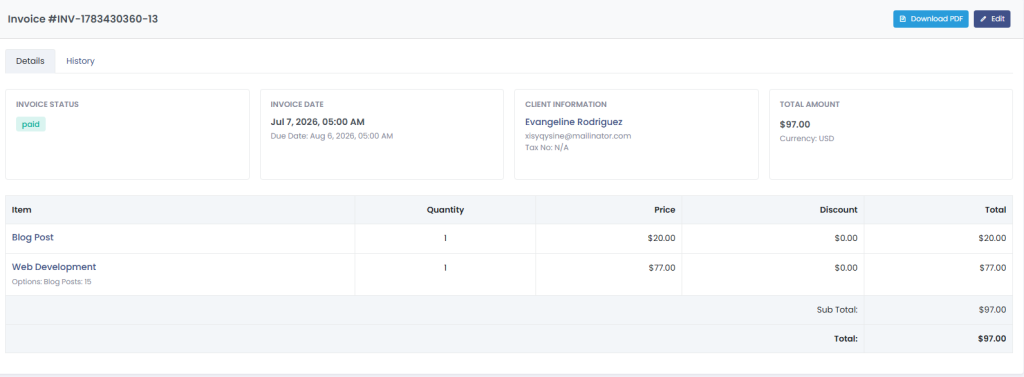
Invoice numbering
Invoices can be numbered sequentially starting from the number of your choice, e.g. INV-1, INV-2, INV-3. The prefix can be customized to match your company’s name.
You can also choose to number invoices on a client level. So user #123 will have invoice numbers INV-123/0001, INV-123/0002 while user #456 would have invoices starting from INV-456/0001.
Seller’s details
Most countries require the seller’s company information to be visible on the invoice. In DSPCRM , you get a free-form text field where you can input information about your company. Typically that’s name, tax ID, and address.
Buyer’s details
We’ll automatically add customer’s first and last name to their invoices. Optionally, you can add a billing address field to your order forms. Details from this field will be populated to the invoice.
Note: When tax is enabled the billing address field automatically becomes required in your order forms. This is because we need the customer’s billing details to calculate their tax.
The billing address field also has an option where clients can provide their company information and tax ID.
Manual invoices
Sometimes, you might want to create a one-off invoice for a customer. Whether it’s for some custom work, a package of various services, or different pricing you can do it from Invoices → Add Invoice.
Assigning invoices
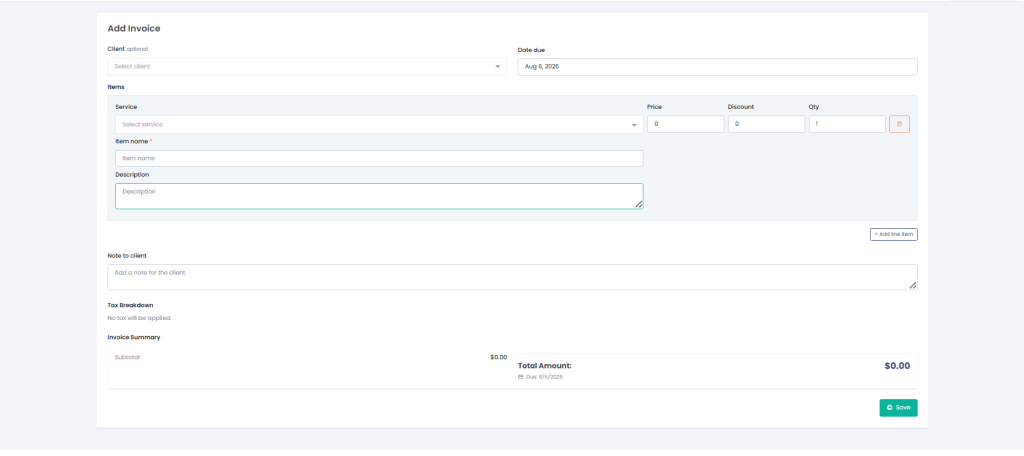
You have the option to select an existing client from the dropdown menu, or create an invoice that anyone can pay. For existing customers, the invoice will be immediately visible in their DSPCRM account.
If you create an invoice without selecting a customer, you’ll need to grab the invoice sharing link and send it to the client directly. Once they pay, it’ll automatically create their account in your workspace.
Additional options
At the bottom of the invoice creation page there are several options:
Note to client
Add a note or text to your invoice for your customer.
Send email notification
For existing customers, send an invoice due email notification when you save the invoice.
Partial upfront payment
This allows you to collect an amount from the total (as a deposit, for example) now, and collect the rest at a later date.
Custom currency
By default, the invoice will use your account-level currency. You can change to an alternative by clicking this option and entering a currency code (e.g. USD, GBP, etc.).
Sharing an invoice
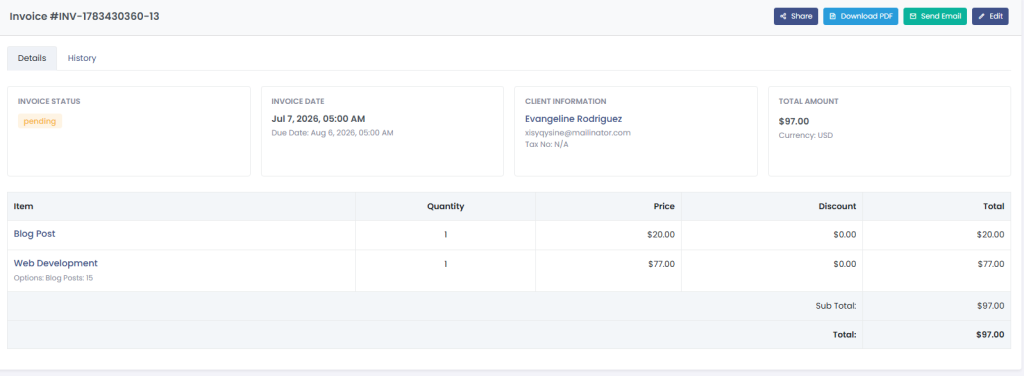
Once the invoice is saved, you can click the 3 dot icon in the top right to email the invoice, get the payment link, or charge the customer (if there is a payment method on file).
You can also edit the invoice if needs be, or download it as pdf.
Invoice statuses
Invoices move through the following statuses:
- Abandoned — A shopping cart was created but the client hasn’t proceeded to checkout yet.
- Unpaid — The invoice has been created (by the client checking out, by an admin manually, or via an order form) and is awaiting payment.
- Payment Pending — A payment has been initiated (e.g., a Stripe PaymentIntent was created) but hasn’t been confirmed yet. This is a temporary state.
- Paid — Payment has been confirmed. Orders are created automatically when an invoice is marked as paid.
- Void — The invoice has been voided by an admin. No payment was collected.
- Refund — A credit invoice created when a refund is issued against a paid invoice.
Refunds
To refund an invoice, open the paid invoice and click the refund option. You can issue:
- Full refund — Refunds the entire amount. A credit invoice is created and all associated orders are canceled.
- Partial refund — Refunds a portion of the invoice. A credit invoice is created for the partial amount.
For Stripe payments, the refund is processed through Stripe automatically. For other payment methods, you’ll need to handle the actual money transfer separately.